¶ Dashboard
The Tyson dashboard opens in a browser on the same local network as your HAT. It shows temperatures, heater state, printer progress, and connection status. It works locally without an internet connection. Dashboard login uses a local user ID and password, separate from developer API access; you can disable security in Settings.
This guide describes Bambu-connected firmware 3.10.4. Prusa CORE One has separate hardware, software and network instructions in the Tyson HAT V2 manual; CORE One L documentation is still pending. Do not apply the Bambu printer connection or mapping steps to a Prusa installation.
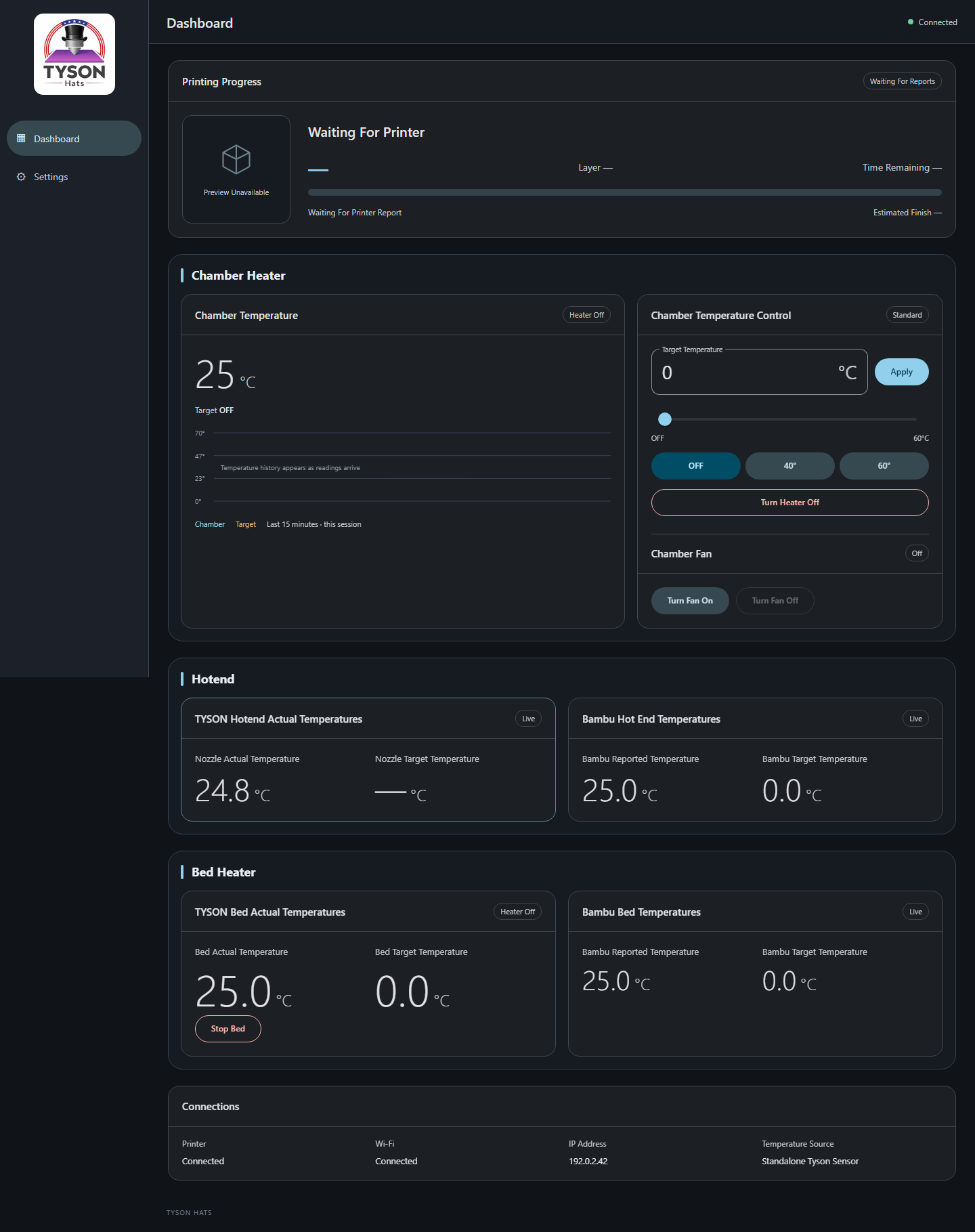
Example screen captured from firmware 3.10.15 with demonstration data. Visible cards depend on the installed hardware and selected printer.
¶ Open the dashboard
- Open the Discovery app on a Windows computer connected to the same local network.
- Select your HAT, then choose Open dashboard. Double-clicking its row does the same thing.
- If Tyson Dashboard Login appears, enter your User ID and Password, then select Sign In. Wait for password verification to finish. A new HAT uses
admin/admin. An explicitly disabled security setting skips the login screen. An upgraded code-only installation first asks you to create a dashboard account using its existing developer code. - Wait for the connection indicator at the top to show that the browser is connected.
You can also open the HAT's IP address directly in a browser. Settings > About shows its hostname and clickable .local dashboard address; Settings > Network shows its current IP. Bookmark the .local address if your network supports it. The IP may change when the router assigns a new address.
For a new HAT that has not joined Wi-Fi, start with Software Setup.
When dashboard login is enabled, Sign Out ends this browser's session without changing heating or mapping. Sign in again after eight hours or a HAT restart. Settings explains enabling login, updating credentials and separate developer access.
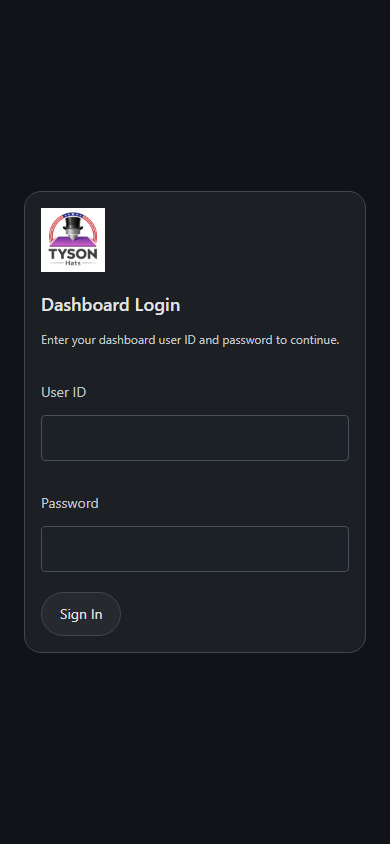
Firmware 3.10.15 production interface with demonstration data. Browser login measured about 6–9 seconds on firmware 3.10.4, depending on load; the screenshot does not measure login time.
¶ Hotend Dashboard
The dashboard shows the nozzle temperature measured by the TYSON Hotend separately from the values reported by the Bambu printer. The actual nozzle temperature can be found under TYSON Hotend Actual Temperatures, while the values reported by your printer will be under Bambu Temperatures.
The target nozzle temperature cannot be set through the dashboard. See Hotend Settings for mapping.
¶ Read the temperature cards
| Area | What it shows | Where you change the target |
|---|---|---|
| Chamber Heater | Chamber temperature, heater state, recent history, target, and fan controls | Chamber Temperature Control on the dashboard |
| TYSON Hotend Actual Temperatures | Temperature measured by the Tyson nozzle sensor and the equivalent actual target | Set the nozzle target on Bambu after the required mapping is calibrated and enabled |
| Bambu Temperatures | The printer's reported nozzle temperature and its own target | On the Bambu printer or its usual controls |
| TYSON Bed Actual Temperatures | Temperature measured by the Tyson bed sensor and the actual bed target | Set the bed target on Bambu after bed control is calibrated and enabled |
| Bambu Bed Temperatures | The printer's reported bed temperature and its own target | On the Bambu printer or its usual controls |
With a scaled temperature preset, Tyson's actual temperature and Bambu's reported temperature are intentionally different. For example, the 110:165 bed preset makes a Bambu target of 100°C correspond to an actual bed target of 150°C. Compare actual temperatures against actual targets, and printer temperatures against printer targets.
A dash means the reading is unavailable; it does not mean the heater or bed is at zero degrees. Check the nearby status message and connections before changing a target. Bambu values arrive over the network and can lag the local Tyson sensor.
Hotend and bed cards appear only when their hardware is enabled in Settings. For a recognized X2D, enabled left and right hotends appear separately. The Settings hotend selector changes which hotend you configure; it does not swap dashboard readings.
¶ Set a chamber target
Chamber Temperature Control on the dashboard operates the chamber heater.
- Enter a target and click Apply, or press Enter while editing the number.
- Alternatively, drag the slider and release it, or click a quick temperature button.
- Wait for Target confirmed and check the target shown on the chamber card.
- Click Turn Heater Off or OFF to set the chamber target to zero.
WARNING: Using the TYSON Hat chamber heater for temperatures above 60°C requires modifications to your printer. Complete all necessary hardware modifications before setting to high temperatures.
NOTE: Lubricate the XYZ motion systems much more frequently if the chamber is above 60°C. The high temperature sticker will change color with TYSON Hat usage.
If the browser disconnects, controls become unavailable until the page reconnects, but closing the browser does not turn heating off.
The maximum selectable target follows the mode saved under Settings > Chamber Heater. The displayed maximum is a software limit, not a statement that every printer enclosure or component is suitable for that temperature; use the limit specified for your installed kit.
The history graph covers the last 15 minutes of this browser session. It is not a permanent log and does not recover earlier history when you open a new session.
¶ Use the chamber fan
Turn Fan On and Turn Fan Off request manual fan changes. Automatic cooling can keep the fan running, and the off button is unavailable while required cooling is active. This can occur after heating or restart, at high chamber temperature, or while the temperature is unavailable.
Choose Quiet, Normal, Fast, or Turbo under Settings > Chamber Heater > Fan Mode, then Save Settings. The animation previews the selected mode; it is not a fan-speed or airflow measurement. Percentages are shown only with Debugging Mode enabled.
WARNING: Never block the side fans of the TYSON Hat, and ensure that they can receive proper airflow. Never turn off the TYSON Hat while it is hot. Let it cool down before unplugging or turning off.
If the fan remains on, see Troubleshooting.
¶ Monitor a print
Printing Progress shows the selected Bambu printer's job name, percentage, layer progress, remaining time, and estimated finish when those values are reported. A preview appears when the printer supplies a supported image. A missing preview does not necessarily mean progress monitoring has failed.
To show Pause, Resume, and Stop Print, enable Developer Mode on the printer itself, then confirm Developer Mode Enabled On Printer in Settings > Network > Printer Connection and save. This checkbox does not enable the printer's own Developer Mode.
The controls depend on fresh printer status and are unavailable during calibration. After a command, wait for the reported state to confirm the change. Stop Print asks for confirmation. If a command remains unconfirmed, check the printer before trying again.
¶ Stop bed control
Choose Stop Bed in the bed card to stop Tyson bed control. It also clears the saved bed-control enable choice. Re-enable it under Settings > Bed Heater when the system is ready and the printer's bed target is zero.
Turning the printer target off usually stops heating. If Bambu resets the target to zero during a recognized bed-heating error, the configured recovery feature can restore the previous target. An explicit off command observed by Tyson takes priority; a touchscreen change may not identify its source. Use Stop Bed when you need to explicitly stop Tyson's bed controller.