¶ Software Setup
Connect to your printer accessories, set up integrated Wi-Fi, and connect to your own network.
¶ Accessing the Dashboard
-
Make sure the TYSON System is turned on and all hardware setup has been completed.
-
When turned on for the first time, the TYSON System goes into access point mode (the Hat creates its own Wi-Fi network). Connect to the Tyson Hat's Wi-Fi network using a computer.
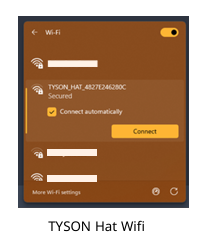
NOTE: On first use, the Wi-Fi is always named TYSON_HAT_XXXXXXX with a unique ID at the end. The default password is 12345678.
-
On any standard web browser, go to http://10.0.0.1. The default username is admin and the default password is admin.
-
Once in the portal, you can change the default passwords and username in settings. The Tyson HAT can be controlled from this interface.
WARNING: Using the TYSON Hat chamber heater for temperatures above 60°C requires modifications to your printer. Complete all necessary hardware modifications before setting your Hat to high temperatures.
For account controls, see Dashboard Login. If you cannot sign in, see Troubleshooting.
¶ Local Network Integration
INFO: This is not required for dashboard access and standalone chamber control. If you would like to connect the TYSON Hat to your own Wi-Fi, continue with these next steps. Bambu readings, temperature mapping and printer commands require a working connection between the HAT and printer.
Troubleshooting: If you are using a corporate or complex network, we recommend forgoing the Wi-Fi integration or reaching out to your IT department for assistance. The following steps may not work.
-
Make a note of the Hostname in the settings page under About. This is needed in later steps when you are regaining access to the portal.
-
Use the Wi-Fi feature in the settings page and either click Scan Networks or enter your SSID to connect to your local Wi-Fi network. After scanning, you will need to select your Wi-Fi and enter your password, then click Connect.
NOTE: If saved Wi-Fi cannot be reached during startup, the Tyson Hat Wi-Fi becomes available after the initial connection attempt. Rejoin that network and open http://10.0.0.1 to regain access to the interface.
-
Once the Hat is connected to Wi-Fi, reconnect your computer to that network. You will need to connect to the Hat's interface through its IP address. The IP address will be unique to your network. There are multiple ways to access it, which are detailed below.
¶ Using the Hostname
In your browser, use the Hostname and go to http://(hostname).local. Replace (hostname) with the Hostname noted above. If the dashboard shows up, you are done. If not, follow the IP-address method below.
¶ Using the IP address
Use the Discovery app or your router's connected-device list to find the Hat's IP address. Open your browser and go to http://(IP). Replace (IP) with the address noted previously.
INFO: If these methods do not work for you, we recommend skipping Wi-Fi integration for standalone chamber use. Network permissions and controls vary, so this feature may not work for all users. See Local Wi-Fi Integration troubleshooting.
¶ Printer Connection
For Bambu readings, temperature mapping and printer commands, complete the printer connection after joining your local network.
- Put the HAT and printer on the same local network.
- Open Settings > Network > Printer Connection.
- Select your printer in Choose Printer. Check its model and identity before continuing.
- Enter the printer's LAN Access Code. Obtain the code from your own printer's network settings.
- Click Save Printer.
- Wait for a connected printer status and fresh temperature readings.
Choosing a discovered printer enables Find This Printer Automatically. The HAT remembers that printer's serial number and finds its current address after router or printer restarts.
For manual connection, fill Printer IP Or Hostname and Printer Serial. Advanced Connection contains the port and username; the defaults are 8883 and bblp. Editing the address or serial switches to manual connection.
Leave LAN Access Code blank when saving changes to keep the existing saved code. Clear Saved Access Code removes it. Selecting a different printer requires that printer's own code.
¶ Developer Mode
Enable Developer Mode on the Bambu printer itself, then check Developer Mode Enabled On Printer in Printer Connection settings and click Save Printer. This checkbox only records your confirmation; it does not change the printer's mode.
See Troubleshooting if the connection does not provide fresh readings.
¶ Calibration
Please run calibration before using your hotend. See Auto-Calibration.
WARNING: Calibration heats up to 450°C. Stay with the printer, since closing the page does not cancel the run.
If the TYSON Heat Bed is installed, complete Bed mapping before enabling bed control.
Hardware Setup | Dashboard usage | Settings | Warnings | Notes