¶ Settings
Open Settings from the dashboard navigation. The four tabs are Network, Hotend, Bed Heater, and Chamber Heater. General cards below the tabs include Display Settings, Factory Reset, Firmware Update, and About.
This page describes firmware 3.10.4 and its Bambu integration. Hardware suitability and wiring belong to the separate model-specific installation manuals.
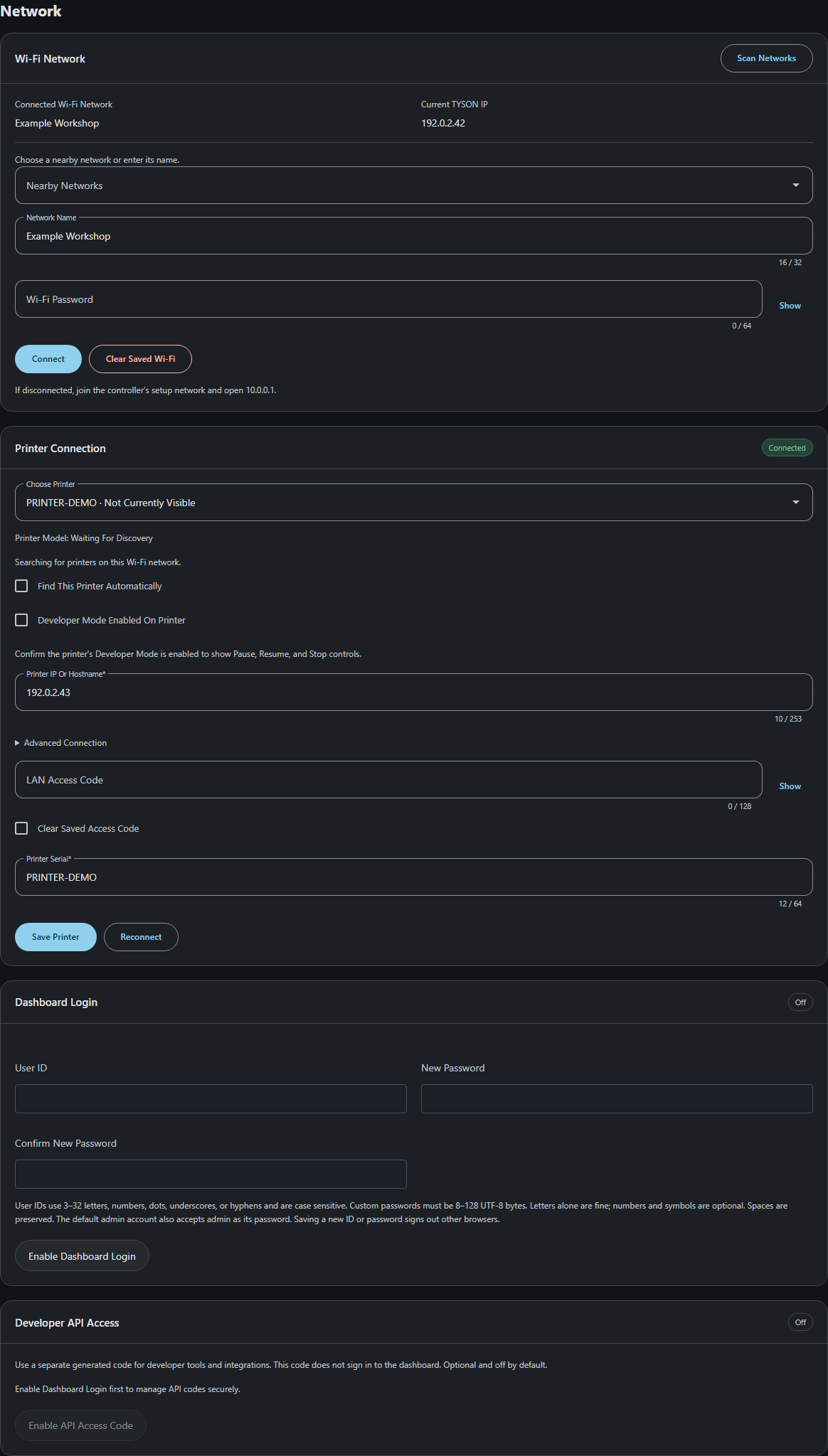
Current workspace Settings interface (firmware version 3.10.15), captured with demonstration data. No live HAT or printer was contacted.
Use Software Setup for dashboard access and network setup. This page walks through the Settings controls after setup. For everyday operation, see Dashboard.
WARNING: Operating a printer at higher temperatures is at the user's own risk. Please complete all necessary hardware modifications before setting to high temperatures. Read all Warnings.
¶ Network
For the first connection to your own Wi-Fi or Bambu printer, follow Dashboard Access and Network Setup. Use the controls below to change an existing configuration.
¶ Dashboard Login
Dashboard Login protects the dashboard with a local user ID and password. A fresh HAT uses ID admin / password admin; developer API access starts off. The ID is case-sensitive, contains 3–32 ASCII letters, digits, dots, underscores or hyphens, and is separate from the printer's account. Custom passwords must contain 8–128 UTF-8 bytes. Eight plain letters are sufficient; numbers, symbols and mixed case are optional. Spaces count and are preserved. The public password admin is also accepted with the ID admin.
- Sign in with the default
admin/admin, or your saved credentials. - Enter Current Password, a new User ID, New Password and Confirm New Password, then select Save ID and Password. An elapsed-seconds indicator stays visible while the account is saved; keep the page open without resubmitting. Old browser sessions are signed out; this browser receives a new session.
- Disable Dashboard Login requires the current password and developer access to be off. Disable All Security turns off both methods together after checking the current password. Once disabled, reachable clients can use the dashboard and API without credentials. This choice survives restart.
- To protect the HAT again, fill the user ID and new password twice, then select Enable Dashboard Login.
On a tested ESP32-S2 HAT running 3.10.4, browser login took about 6–9 seconds and changing both credentials about 16–25 seconds across tests with different telemetry loads. Timing depends on controller and network load. The firmware retains 600,000 password-hashing rounds and existing saved credentials.
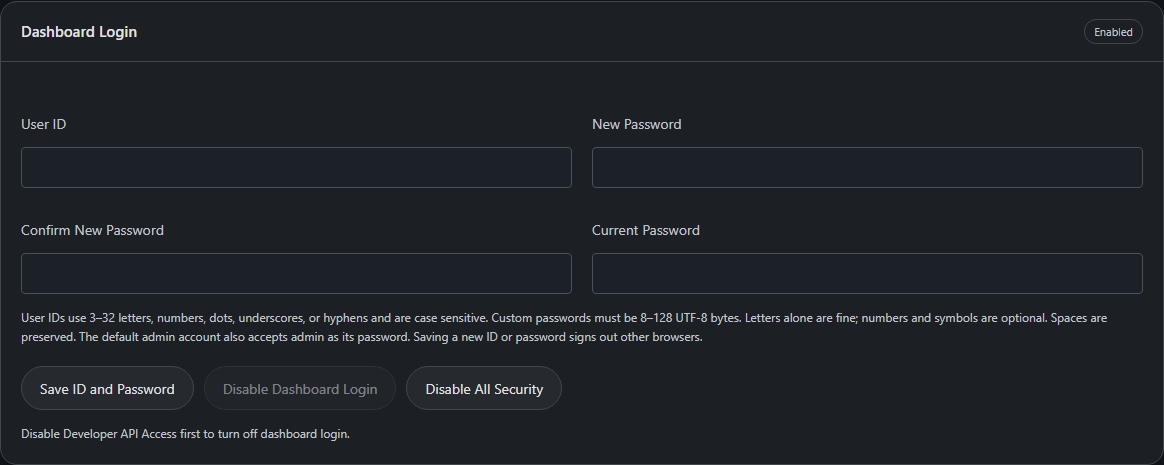
Firmware 3.10.15 production interface with demonstration data; no live credentials or hardware are shown.
¶ Developer API Access
Developer API Access provides a separate eight-character code for software integrations. Enable dashboard login first, then select Enable API Access Code. Save the code with Copy Code, then select I Saved It; it is shown only when generated. Generate New API Code replaces it, and Disable API Access Code turns off code authentication. These actions preserve dashboard sessions. The developer code cannot be used in the dashboard login form.

Firmware 3.10.15 production interface with demonstration settings. Generate and save your own code for integrations.
Sign Out ends only this browser session. Browser sessions expire after eight hours and disappear when the HAT restarts. These actions do not change heating or other control settings. When dashboard login is on but developer access is off, API requests require a dashboard session; the API is not left open.
Both methods protect access through the LAN and setup Wi-Fi network. Upgrading an enabled code-only installation preserves its developer code and asks you to create a dashboard account using that code once. See Troubleshooting for recovery and the developer reference for integration details.
¶ Printer Connection
Printer Connection selects the Bambu printer and stores its LAN access details. Prefer Choose Printer with Find This Printer Automatically when the printer is discoverable, so its changing IP address can be followed. Reconnect requests another connection attempt using saved settings.
¶ Wi-Fi Network
Wi-Fi Network shows the connected network and current HAT IP. Choose Scan Networks, select a network or enter its name, enter its password, and select Connect. Changing Wi-Fi can disconnect the browser; reopen the HAT from its new address or the Discovery app.
Clear Saved Wi-Fi removes the saved network. Use the setup network to reconnect afterward. It is different from Factory Reset, which also erases printer settings and custom calibration.
Troubleshooting: If you are using a corporate or complex network, we recommend forgoing the Wi-Fi integration or reaching out to your IT department for assistance. See Local Wi-Fi Integration.
See Software Setup for the complete setup sequence.
¶ Hotend
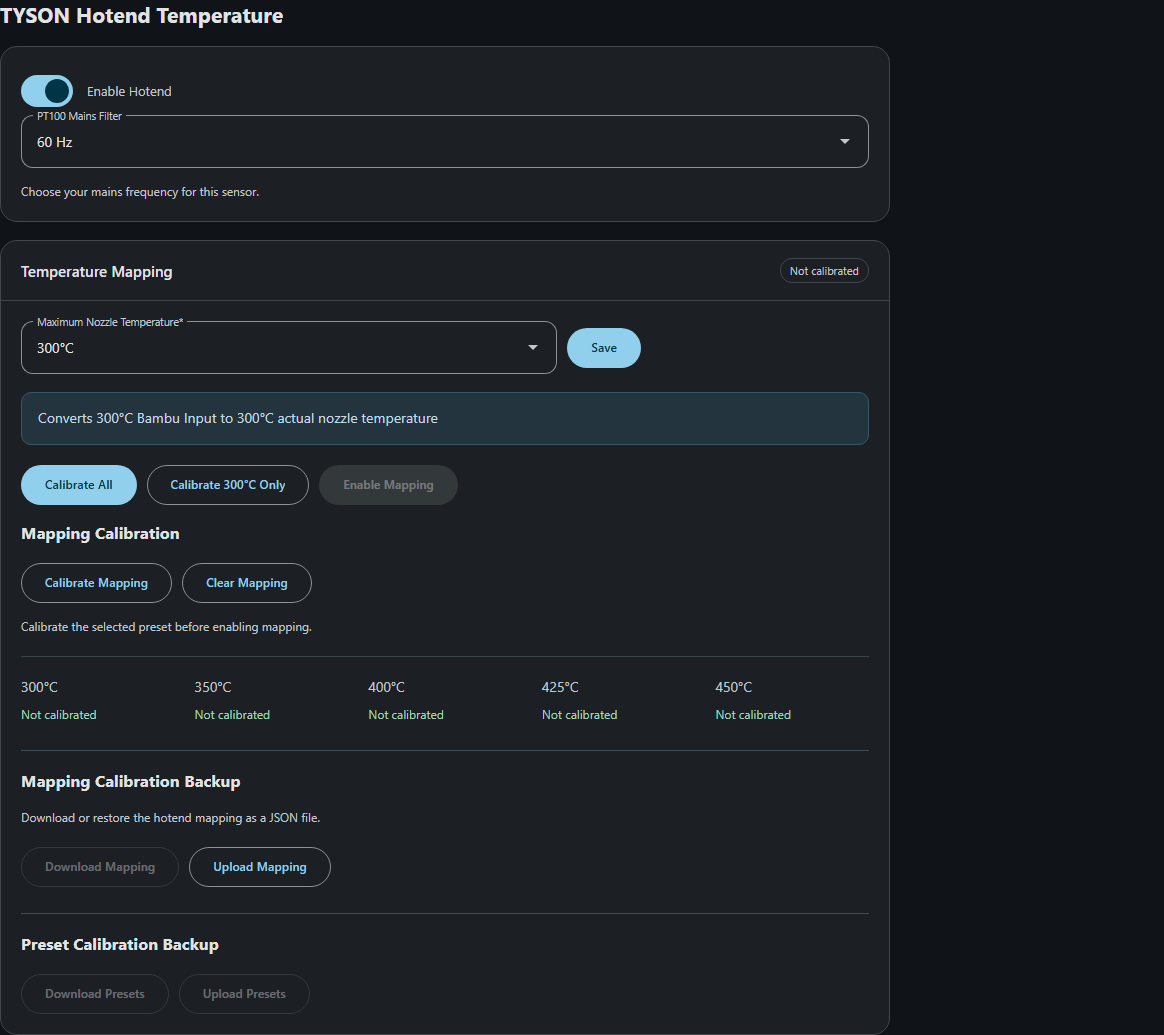
Current workspace interface with demonstration data.
- Open Settings > Hotend.
- Turn on Enable Hotend if your system has the TYSON hotend setup. It is off by default. Turning it off stops control and hides it from the dashboard. Calibration is kept.
- Choose 50 Hz or 60 Hz under PT100 Mains Filter to match your mains frequency. The selection saves automatically.
NOTE: Enabling the installed hotend is separate from enabling temperature mapping. Do not enable it for an absent or uncommissioned kit.
For a recognized X2D, select Left Hotend or Right Hotend before changing settings. Each hotend has its own enable setting, mapping and calibration. The supplied P2S installation instructions do not establish X2D hardware compatibility.
¶ Mapping
To set your printer's temperature, enter a temperature of up to 300°C on the Bambu Printer's screen. Based on the configured temperature mapping, the hotend will convert this input to a different, higher temperature, which is the actual temperature applied at the nozzle.
Please run calibration before using your hotend. See Auto-Calibration below.
The Maximum Nozzle Temperature value defines the actual nozzle temperature corresponding to a 300°C input on the printer. See the chart below for the resulting nozzle temperature at each input temperature.
| Maximum Nozzle Temperature | Nozzle Target Temp. at 200°C Input | Nozzle Target Temp. at 300°C Input |
|---|---|---|
| 300°C (default) | 200°C | 300°C |
| 350°C | 233.3°C | 350°C |
| 400°C | 266.7°C | 400°C |
| 425°C | 283.3°C | 425°C |
| 450°C | 300°C | 450°C |
- Choose Maximum Nozzle Temperature and click Save.
- Complete calibration for the selected preset.
- Choose a Ready preset and click Enable Mapping.
- Set the nozzle target on the Bambu printer, then check the actual temperature on the Dashboard.
¶ Auto-Calibration
Calibrate All works through all five temperature presets. Each printer target has a 25-minute limit to heat and settle, and a stage that succeeds advances immediately. Find the calibration steps below.
WARNING: Calibration heats up to 450°C. Stay with the printer, since closing the page does not cancel the run. Use the full sequence only with hardware suitable for all five presets.
- Keep the printer and controller connected, leave the printer idle, set its nozzle target to zero, and wait for the nozzle to cool below 50°C.
- Save any edited selection, clear a nozzle error on the printer if present, then click Calibrate All. To calibrate only the saved selection, click Calibrate 300°C Only or the equivalent button for your selected temperature.
- Let the controller measure the printer response, heat through the calibration targets, and cool between presets without changing the printer target yourself.
- After the final cooldown and save finish, choose a Ready preset and click Enable Mapping.
| Button | What Happens |
|---|---|
| Calibrate All | Works through all five temperature presets. |
| Calibrate [temperature]°C Only | Calibrates the selected temperature preset. |
| Resume Calibration | Keeps completed presets and repeats the unfinished work after the start checks pass. |
| Start Over / Recalibrate All | Deliberately replaces the saved preset results and starts all five again. |
| Cancel | Ends the active calibration and requests the nozzle to stop heating when needed. |
| Stop Nozzle | Requests nozzle heat off and latches a stopped mapping state. |
| Disable Mapping | Exits mapping after the printer is idle, the nozzle target is off and the nozzle is cool. |
| Calibrate Mapping | Measures the electrical mapping separately from heated preset calibration. |
| Clear Mapping | Removes the electrical mapping and its dependent preset calibrations. |
WARNING: A stop request is not a physical power cutoff; confirm that heating has stopped and use the printer's controls or power switch if it has not.
Troubleshooting: If calibration or mapping is unavailable, save pending changes and check the nearby status. See Calibration or Enable Control is unavailable.
¶ Mapping and preset backups
Download Mapping saves the hotend mapping and selected temperature preset. Download Presets saves all five preset calibrations in a separate JSON file.
- Save pending preset changes, disable hotend mapping and turn off the printer nozzle target before uploading.
- Restore the matching mapping first with Upload Mapping.
- Use Upload Presets to restore the preset calibrations for that mapping.
- Review the restored preset before enabling mapping again.
NOTE: Use backups only with the same printer and unchanged heater, sensor and wiring. A different mapping clears the five preset calibrations. Uploading does not enable heating.
See Calibration and backups for the complete procedure.
¶ Bed Heater
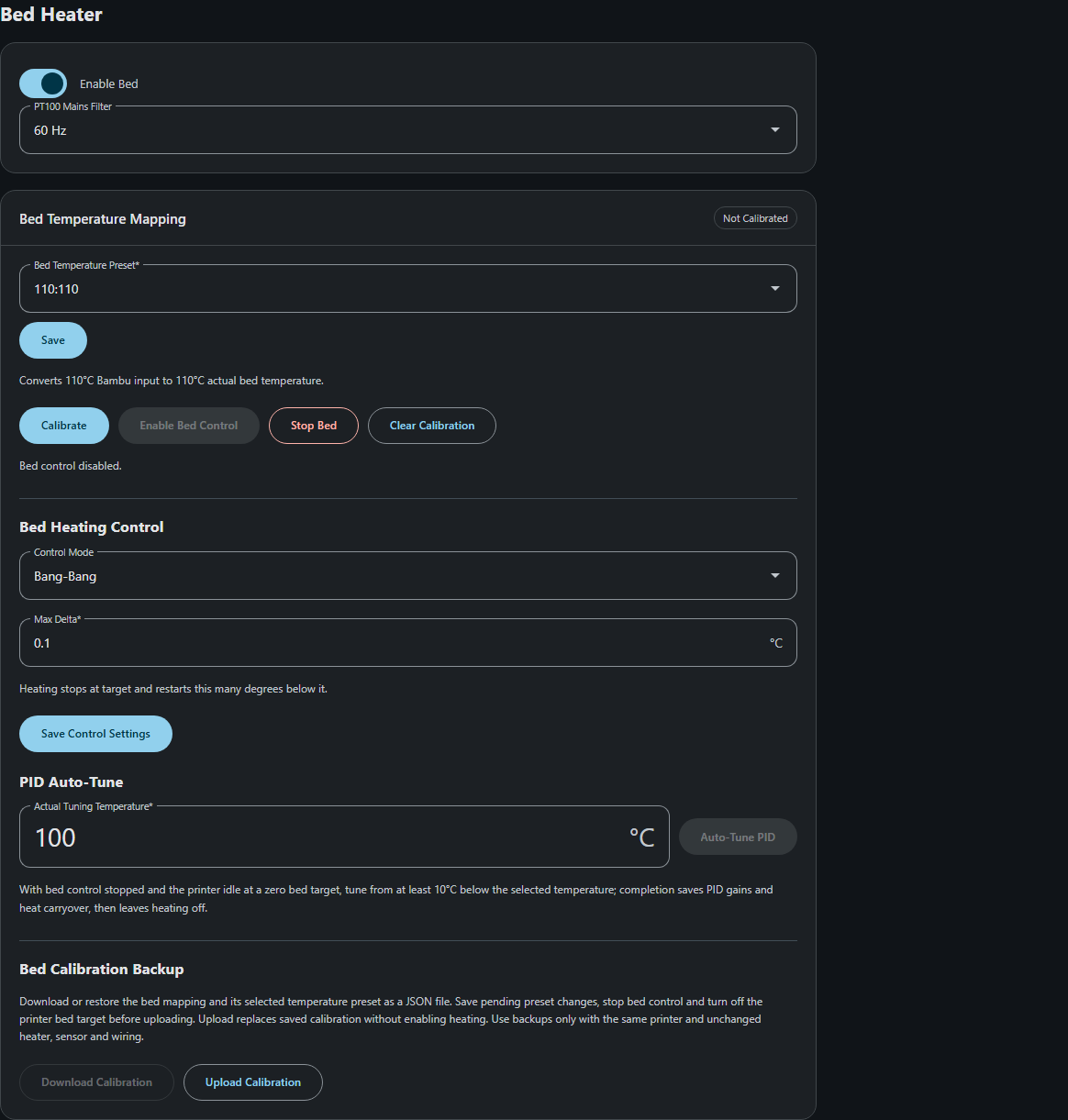
Current workspace interface with demonstration data.
- Open Settings > Bed Heater.
- Turn on Enable Bed if your system has the TYSON bed setup. It is off by default. Turning it off stops control and hides it from the dashboard. Calibration is kept.
- Choose 50 Hz or 60 Hz under PT100 Mains Filter to match your mains frequency. The selection saves automatically.
Enable Bed Control separately starts regulation once prerequisites are satisfied.
¶ Bed Temperature Mapping
The Bed Temperature Preset translates a Bambu target into an actual Tyson bed target:
| Preset | Example Bambu target | Equivalent actual bed target |
|---|---|---|
| 110:110 | 100°C | 100°C |
| 110:165 | 100°C | 150°C |
| 110:220 | 100°C | 200°C |
All three use the same bed mapping calibration. Stop bed control, choose the preset, and Save before re-enabling control. Set the operational bed target on Bambu.
- Keep the printer idle, stop bed control and set the printer bed target to zero.
- Save the selected preset and click Calibrate.
- Wait for the mapping to be saved, then click Enable Bed Control while the printer bed target is still zero.
- Set the desired bed target on Bambu and monitor the actual temperature on the dashboard.
NOTE: Bed mapping is an electrical test with the heater off. It is not PID Auto-Tune. Clear Calibration removes the saved mapping. See Bed mapping.
Troubleshooting: If the actual and Bambu temperatures differ, check the selected preset before changing a target. See Actual and Bambu temperatures differ.
¶ Bed Heating Control
Under Bed Heating Control, choose Bang-Bang or PID, then Save Control Settings while control is stopped. Bang-Bang stops heating at target and restarts Max Delta degrees below it. PID uses saved or entered gains; it needs valid tuning for the actual installation. Calibration and backups explains PID Auto-Tune.
¶ PID Auto-Tune
- Complete bed mapping, click Stop Bed, leave the printer idle and set its bed target to zero.
- Choose an Actual Tuning Temperature from 40–200°C. The default is 100°C. Use a temperature suitable for the installed bed.
- Wait until the bed is at least 10°C below the selected temperature, then click Auto-Tune PID.
- Stay with the printer until tuning finishes. Completion saves PID gains and heat carryover, selects PID and leaves heating off.
Cancel Tuning or Stop Bed ends the test. Re-tune after changing supply voltage or power settings.
WARNING: PID Auto-Tune heats the bed. Closing the page does not stop the run.
¶ Bed Calibration Backup
Download Calibration saves the bed mapping and selected temperature preset. Save pending preset changes, stop bed control and turn off the printer bed target before using Upload Calibration. Upload replaces saved calibration without enabling heating.
NOTE: Use backups only with the same printer and unchanged heater, sensor and wiring. The mapping backup does not include PID mode, gains or control settings. See Calibration and backups.
¶ Chamber Heater
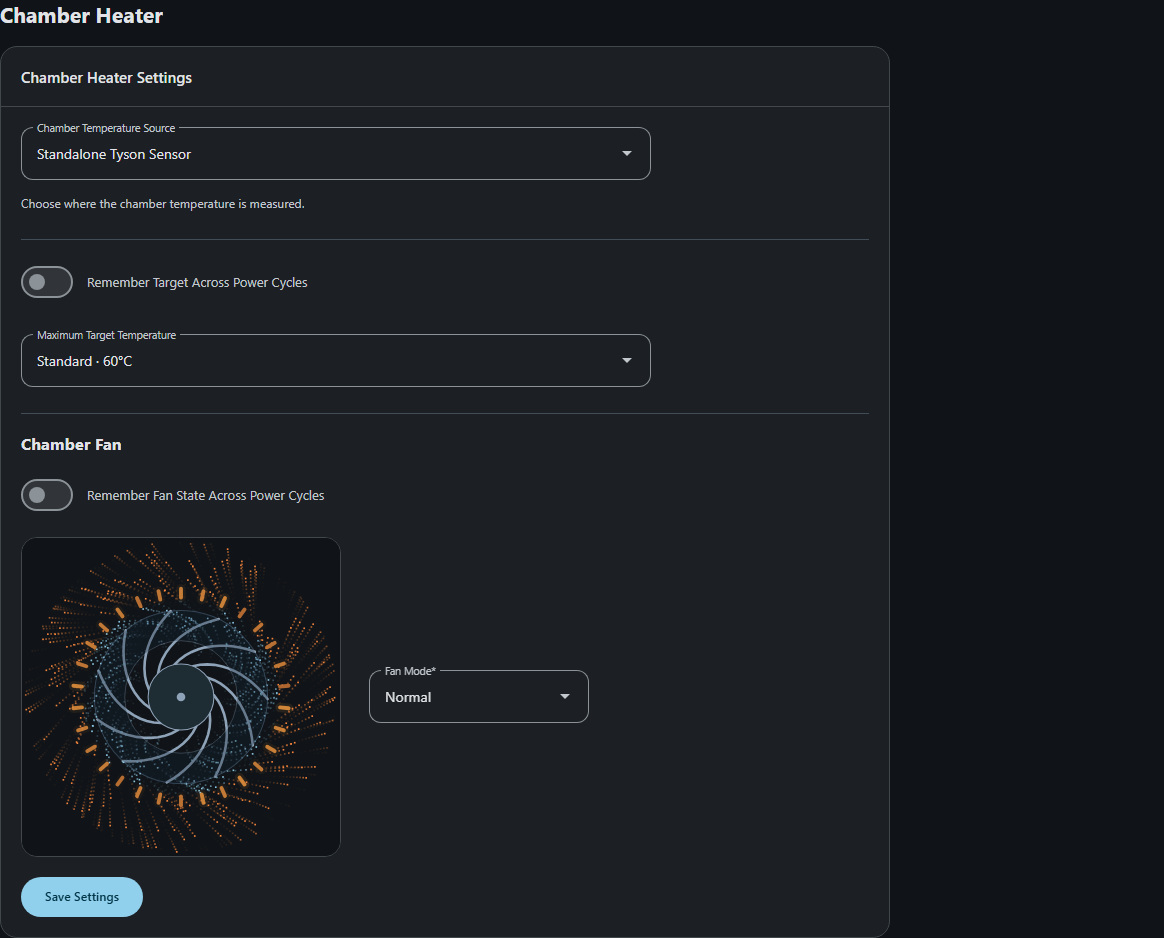
Current workspace Settings interface with demonstration data. The airflow illustration previews a mode; it does not measure the fan.
¶ Chamber Temperature Source
Changing the source pauses chamber heating until a fresh reading arrives, and lowering the maximum also lowers any target above the new limit.
| Option | Description |
|---|---|
| Standalone Tyson Sensor | Measure chamber temperature locally, without relying on printer reports. Requires sensor attachment. This is the default. |
| Bambu LAN | Use the printer's chamber reading; missing or stale readings disable chamber heating until fresh data returns. |
¶ Remember Target Across Power Cycles
When off, the chamber target resets to zero after a restart; when on, the saved target can resume heating once a fresh reading is available. Turning this option off and saving also sets the current chamber target to zero.
¶ Maximum Target Temperature
Select Standard · 60°C, Advanced · 90°C or Expert · 108°C for the chamber, then click Save Settings.
WARNING: Using the TYSON Hat chamber heater for temperatures above 60°C requires modifications to your printer. Complete all necessary hardware modifications before setting to high temperatures.
NOTE: Lubricate the XYZ motion systems much more frequently if the chamber is above 60°C. The high temperature sticker will change color with TYSON Hat usage.
¶ Chamber Fan
Choose Quiet, Normal, Fast, or Turbo under Fan Mode, then Save Settings. Remember Fan State Across Power Cycles separately saves manual fan on/off preference. Automatic cooling remains active even when this preference is off.
The airflow preview follows the selected mode immediately. Pause Preview pauses only the illustration. Use the dashboard controls to operate the actual fan.
The fan ramps up to the saved speed, and chamber heat waits for the ramp to finish. Automatic cooling can keep the fan on while the chamber is above 60°C, while temperature is unavailable, and during heater coil cooldown. Restarting runs a 30-second cooling period.
WARNING: Never block the side fans of the TYSON Hat, and ensure that they can receive proper airflow. Never turn off the TYSON Hat while it is hot. Let it cool down before unplugging or turning off.
For a fan that keeps running after heating stops, see Troubleshooting. For temperature controls, see Dashboard usage.
¶ Debugging Mode and heater power
Display Settings > Debugging Mode reveals additional diagnostic messages and Heater Power Settings. This display preference is remembered in the current browser. It does not enable or disable heater regulation.
In Debugging Mode, fan modes correspond to Quiet 40%, Normal 55%, Fast 70%, and Turbo 85%. Normal is the default.
Heater Power Settings offers Supply Voltage, separate bed/chamber Maximum Allowed Power, and separate PWM Frequency. Selecting a voltage fills these default limits; choose Save Heater Power to apply them:
| Supply voltage | Bed maximum | Chamber maximum |
|---|---|---|
| 120 V | 85% | 100% |
| 220 V | 29% | 36% |
| 230 V | 27% | 33% |
| 240 V | 25% | 30% |
| 250 V | 23% | 28% |
The voltage selection does not measure or change the real supply voltage. The percentages limit the SSR control signal; they are not measured wattage or current guarantees. Use the configuration specified for your installed heater, SSR, fuse, and wiring, and read the warning shown when saving.
WARNING: Increasing maximum power at higher voltages may blow a fuse or damage cables; zero-cross SSRs switch on AC half-cycles, so actual power can differ, especially at high PWM frequencies and low percentages.
Saving heater power turns chamber heating off and preserves the bed-control setting. Re-tune bed PID after changing supply voltage or power settings. The default PWM frequency is 10 Hz for both heaters.
¶ About and Factory Reset
About shows the controller serial, running firmware version, hostname, and dashboard address. The controller serial is different from the printer serial.
Factory Reset erases saved Wi-Fi, printer connections, settings, the dashboard account, developer API code, and custom calibration, then restarts with factory calibration defaults and dashboard login admin / admin. Developer API access returns to off. Use backups first when you need to retain matching calibration. A reset does not install a new firmware version and is not required for routine updates.
For a lost password or an unresolvable network problem, see Reset to Factory Defaults. Read the cooling and power-isolation warnings before handling the HAT.
¶ Firmware Update
Use Firmware Update > Upload And Install to upload a compatible TYSON application .bin file. The HAT restarts without clearing saved settings. Restart temporarily interrupts heater control and temperature mapping. Follow Firmware updates for preparation, file selection and verification.
Setup instructions · Dashboard usage · Warnings · Notes · Troubleshooting