¶ Prusa CORE One — TYSON Hat installation and setup
This guide covers installation, setup, and operation of the V2 TYSON Hat for the Prusa CORE One.
120 V ONLY: The Prusa CORE One TYSON Hat is rated for 120 V. Never connect it to 240 V.
READ BEFORE USE: Read this entire guide, including Warnings, notes, and troubleshooting, before installation or operation. Complete Hardware upgrades for temperatures above 60°C before using chamber temperatures above 60°C. Operating a printer at higher temperatures is at the user's own risk.
¶ In this guide
- Unboxing and hardware setup
- Interface and network setup
- Hardware upgrades for temperatures above 60°C
- Warnings, notes, and troubleshooting
¶ Unboxing and hardware setup
¶ 1. Remove the printer's top lid
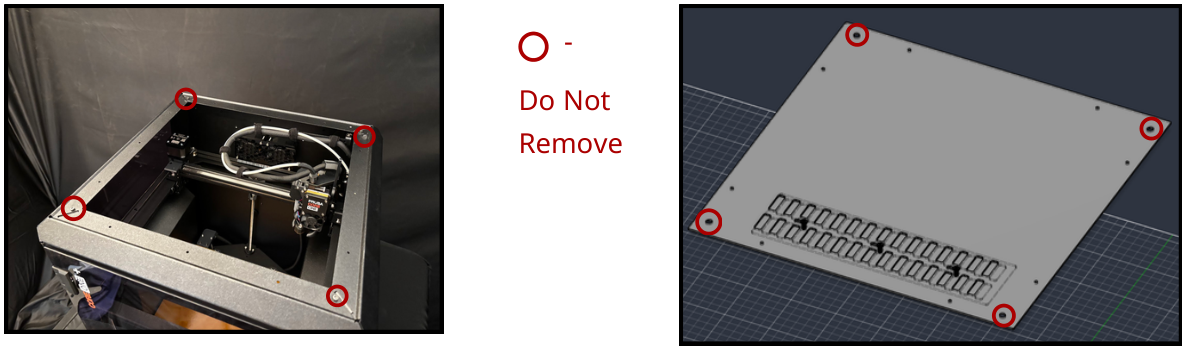
Remove the top lid from the CORE One. Leave the four corner structural screws in place for now. They will help align the Hat later.
Prusa attaches the lid with nylon rivets. Once the lid is removed, it cannot be reattached with the same security using those rivets.
¶ 2. Route the temperature sensor wire
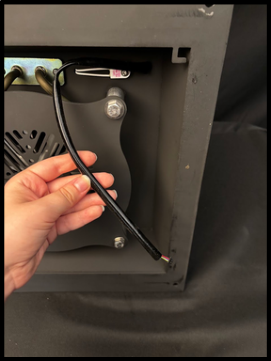
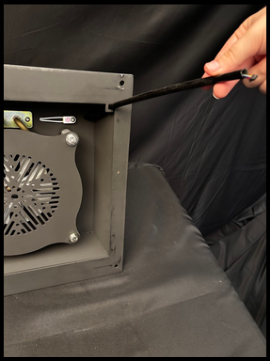
Put the sensor wire in the hook holder, as shown below.
¶ 3. Attach the antenna
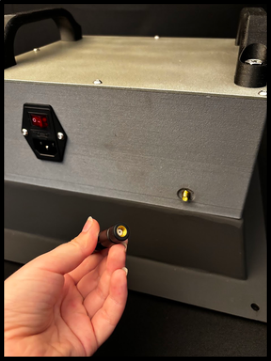
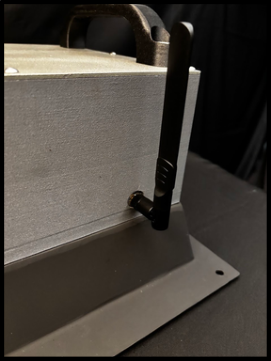
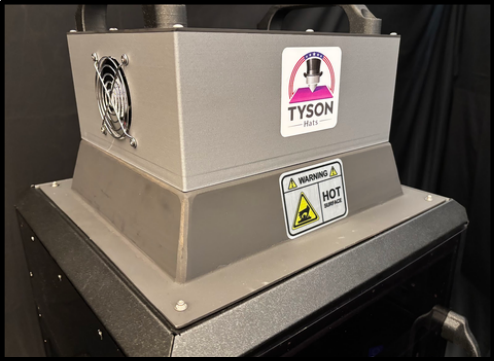
Attach the included antenna to the back of the TYSON Hat.
¶ 4. Align the Hat on the printer
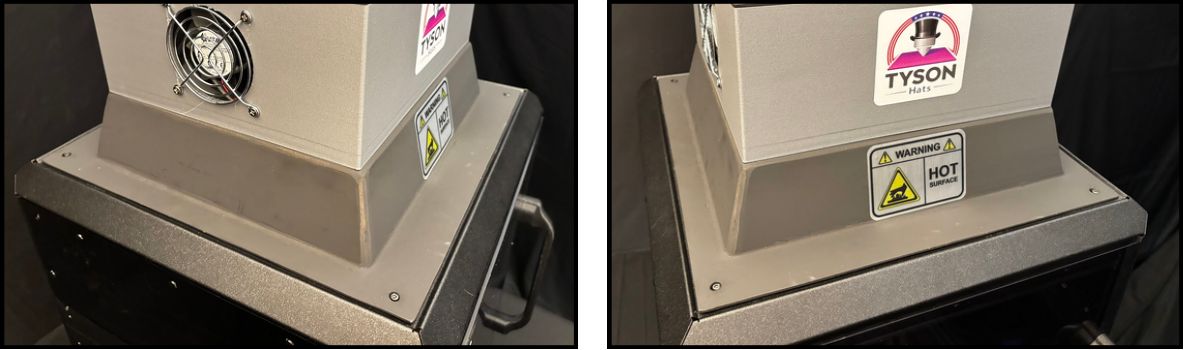
Place the Hat on top of the CORE One. Use the four structural screws left in the top of the printer to assist with alignment. The Hat's power switch must face the back of the printer.
¶ 5. Secure the Hat
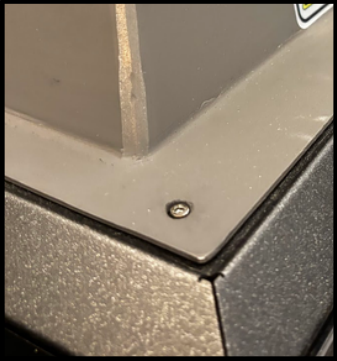
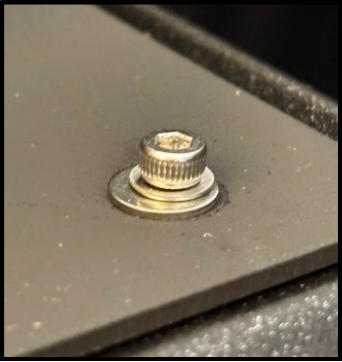
Remove the four structural screws used for alignment. Attach the Hat using the four supplied M3 screws and washers. Put all four screws in place before fully tightening them.
¶ 6. Connect the temperature sensor
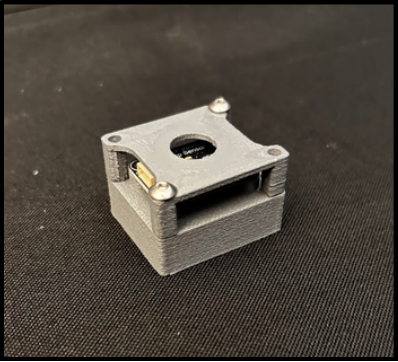
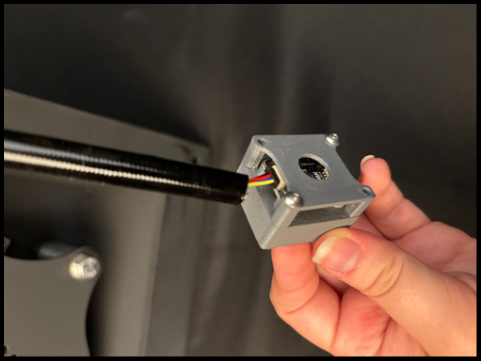
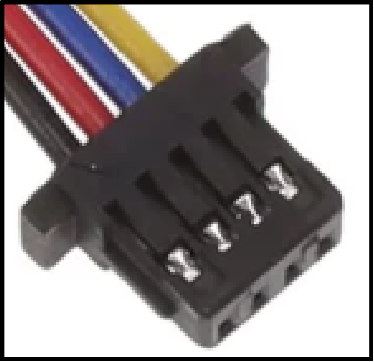
Attach the sensor wire to the included magnetic temperature sensor. There are two ports; either port can be used.
The shiny side of the cable connector must face the magnet side of the sensor. Check the orientation carefully before connecting the cable.
¶ 7. Place the sensor on the back wall
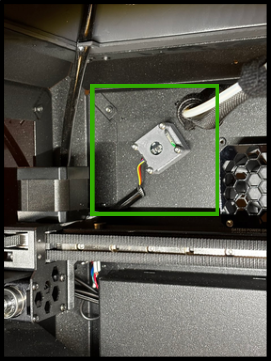
Attach the magnetic temperature sensor to the back wall of the CORE One, in the placement area shown below. The magnet on the back of the sensor is rated for 400°C.
¶ 8. Power on and check the sensor
Plug in and turn on the TYSON Hat. Check that the temperature sensor lights up green. The sensor placement photograph above shows the light's location.
Continue to Interface and network setup.
¶ Interface and network setup
¶ 1. Complete the hardware setup
Make sure all steps in Unboxing and hardware setup are complete and the TYSON Hat is turned on.
¶ 2. Connect to the Hat's Wi-Fi
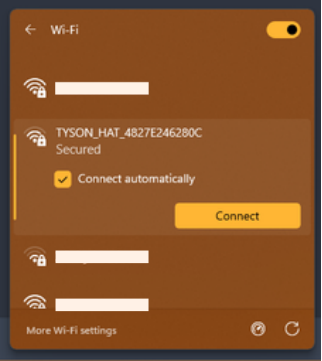
On first use, the Hat starts in access point mode and creates its own Wi-Fi network. Use a computer to connect to it.
| Setting | First-use value |
|---|---|
| Wi-Fi network name | TYSON_HAT_XXXXXXX, with a unique ID at the end |
| Wi-Fi password | 12345678 |
¶ 3. Open the interface
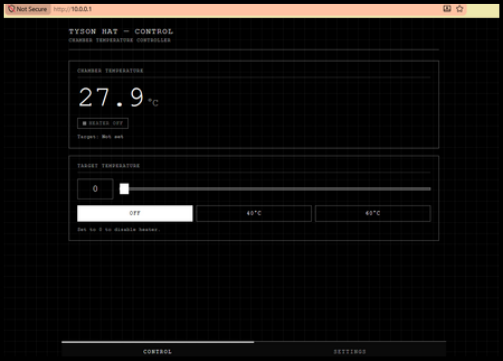
Open http://10.0.0.1 in a web browser while connected to the Hat's Wi-Fi.
| Login field | Default value |
|---|---|
| Username | admin |
| Password | admin |
¶ 4. Review the dashboard and settings
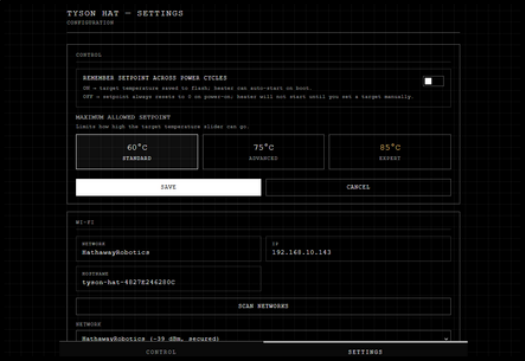
The Hat can be controlled through this interface. Open Settings to change the default username and passwords.
TEMPERATURE LIMIT: Complete Hardware upgrades for temperatures above 60°C before setting the Hat above 60°C.
You can continue using the Hat's own Wi-Fi. If you want to connect the Hat to your local Wi-Fi network, continue with the following steps.
¶ 5. Record the hostname
Make a note of the Host Name shown in Settings. You will use it to find the interface after the Hat joins your network.
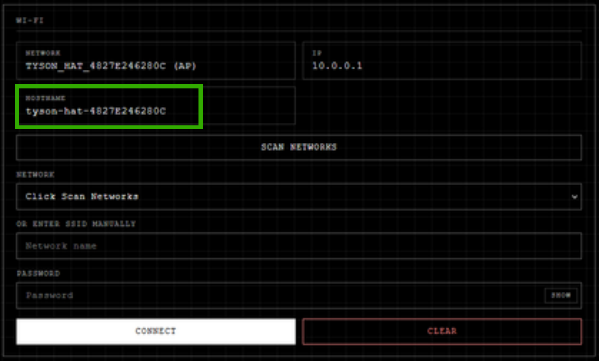
¶ 6. Join your local Wi-Fi network
Use the Wi-Fi controls in Settings to scan for networks, or enter your network's SSID manually. Select your network, enter its password, then select Connect and wait for the Hat to join the network.
If there is a password or network security problem, the Hat's Wi-Fi network will reappear so you can reconnect to its interface.
For a corporate or complex network, ask your IT department for help with this connection. You can also continue using the Hat's own Wi-Fi.
¶ 7. Reopen the interface on your network
Connect your computer to the same local network as the Hat. Use either of these methods to reopen the interface.
Use the hostname: Open http://hostname.local, replacing hostname with the Host Name recorded in step 5.
Use the IP address: If the hostname does not resolve, open your router's connected-device or DHCP-client list. Identify the Hat by its recorded hostname or its known Wi-Fi MAC address, then open http://IP using the assigned IP address.
On Windows, arp -a in Command Prompt can help show IP-to-MAC mappings for devices your computer has recently communicated with. Use it only if you already know the Hat's exact Wi-Fi MAC address; an ARP list may not contain every device on the network. Do not guess the Hat's address by choosing a MAC address that looks similar to its hostname.
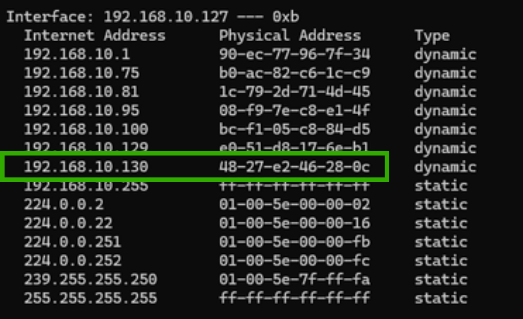
If these methods do not work, contact your IT department for a corporate network, or the TYSON support team for further help.
¶ Hardware upgrades for temperatures above 60°C
REQUIRED BEFORE HIGH-TEMPERATURE USE: Read all Warnings and notes. Printing with a chamber above 60°C requires advanced knowledge of the printer and materials. Heat-sensitive parts must be replaced before proceeding.
¶ 1. Cool and shut down the Hat
Complete Unboxing and hardware setup first. Let the TYSON Hat fully cool, then shut it off before modifying the printer.
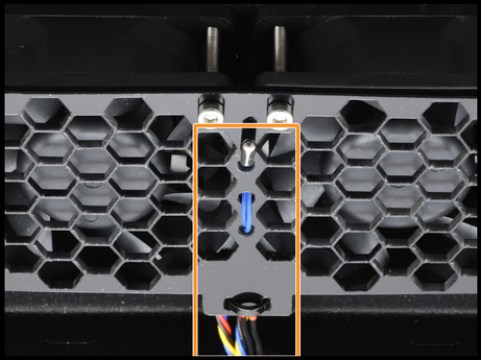
¶ 2. Seal the printer's rear exhaust fans
Cover the CORE One's integrated rear exhaust fans so the chamber is sealed.
Keep the TYSON Hat's side fans clear. The rear exhaust fans on the printer are separate from the Hat's side fans, which must always have airflow.
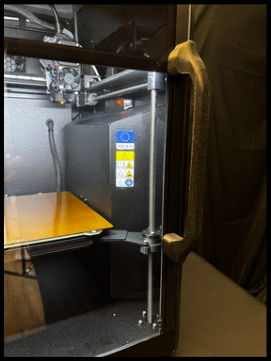
¶ 3. Replace the door handle
Remove the original door handle and attach the included replacement.
¶ 4. Relocate the original chamber temperature sensor
Remove the CORE One's original chamber temperature sensor from inside the heated chamber. Leave it connected to the board at the back of the printer. Move the sensor to the rear area of the printer.
This is the printer's original sensor; keep the TYSON Hat's magnetic temperature sensor in its back-wall placement area.
¶ 5. Replace the PETG printhead components
Replace both the Printhead Cable Clip and Printer Head Main Plate with the replacement parts included with the TYSON Hat. The original parts are made from PETG and are unsuitable for the higher chamber temperatures covered by this section.
The images below show the parts and their locations. Follow Prusa's instructions for the detailed part replacement procedure.
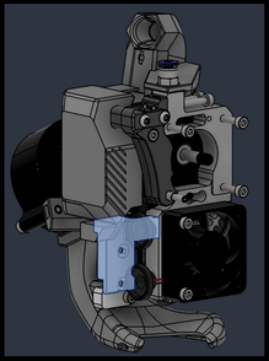
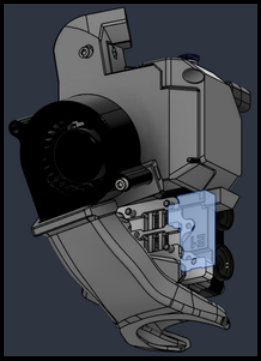
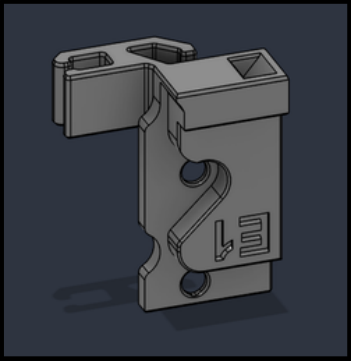
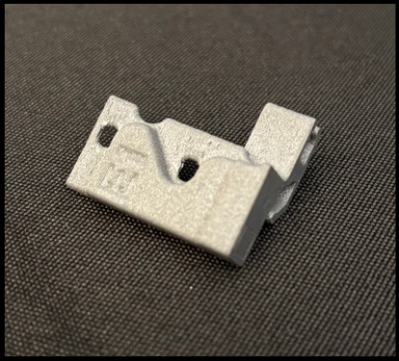
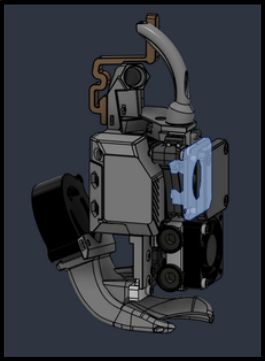
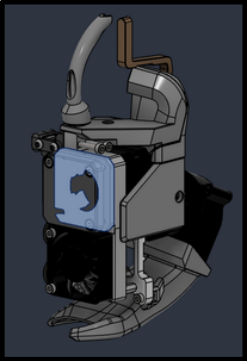
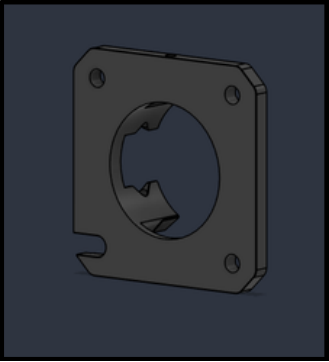
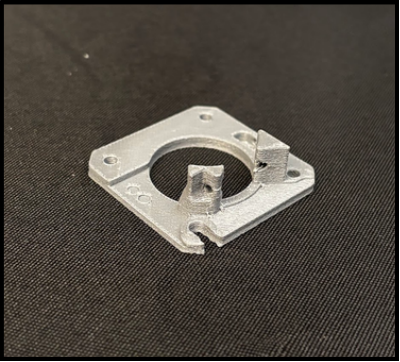
If the printer was upgraded from an older model, also check that any additional heat-sensitive PETG parts have been replaced.
¶ 6. Level at 60°C or below before raising the temperature
When operating the CORE One above 60°C, automatic Z-leveling may not work properly. Start the print with the chamber at 60°C or below. Raise the chamber temperature only after the printer has completed leveling.
For chamber operation above 60°C, lubricate the XYZ motion systems and the Nextruder's planetary reduction gearbox much more frequently.
¶ Warnings, notes, and troubleshooting
¶ Warnings
- Read all instructions and warnings before operating the Hat. Operating a printer at higher temperatures is at the user's own risk.
- Complete Hardware upgrades for temperatures above 60°C before operating above 60°C.
- Use 120 V only. Never connect the Prusa CORE One TYSON Hat to 240 V.
- Never block the Hat's side fans. They must receive proper airflow.
- The metal parts of the Hat become dangerously hot. Do not touch the Hat during heating or operation, and allow enough time for it to cool before handling it.
- Do not turn off or unplug the Hat while it is hot. Let it cool before shutting it down or disconnecting power.
¶ Operating notes
- Do not pick up the printer by the two handles on the Hat.
- This model has V2 hardware, which uses a quieter fan. The fans always run at a fixed speed; their speed cannot be changed.
- Above 60°C, lubricate the XYZ motion systems and the Nextruder's planetary reduction gearbox much more frequently.
- Automatic Z-leveling may not work properly above 60°C. Start at 60°C or below, then raise the temperature after leveling is complete.
- The high-temperature sticker changes color with Hat usage.
- Heat-sensitive PETG printer components can deform or fail at elevated chamber temperatures. Complete the required replacements in Hardware upgrades, and check for additional PETG parts on printers upgraded from older models.
¶ Wi-Fi or network connection problems
For a complicated or corporate network, ask your IT department to help with the connection before contacting TYSON support. You can continue using the Hat's own Wi-Fi instead of joining that network.
If the Hat cannot connect because of a password or network security issue, reconnect to its access point when the Hat's Wi-Fi reappears. For network issues that cannot be resolved, or a forgotten interface username or password, use the factory-reset procedure below.
¶ Factory reset for network issues or a forgotten login
Follow these nine steps to reset the Hat. Locate the board and BOOT button in the photographs before starting.
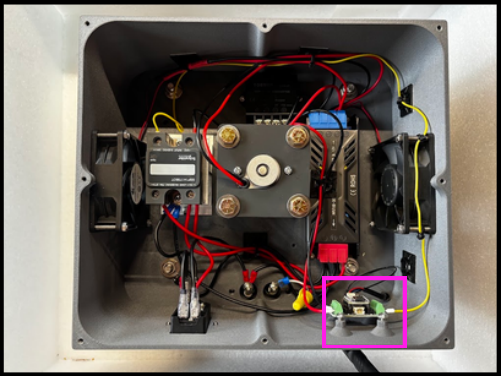
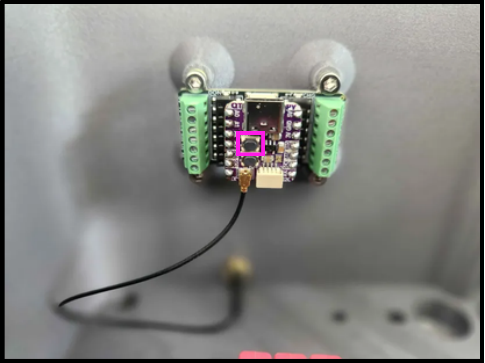
- Allow the Hat to fully cool before handling it.
- Shut off and unplug the Hat.
- Remove the Hat's top panel.
- Locate the BOOT button on the board using the photographs above.
- Plug the Hat back in and turn it on.
- DO NOT TOUCH ANY WIRES.
- Press and hold the BOOT button for 5 seconds.
- Shut the Hat off again and unplug it.
- Replace the top panel, then follow Interface and network setup to configure the Hat again.
¶ Hat does not heat
The thermal fuse may have blown. Contact TYSON support. Do not attempt to repair the Hat or thermal fuse yourself.
¶ Sensor lights green but no temperature data appears
Check that the outlet supplying the Hat has a proper ground connection when the temperature sensor's green light is on but its data does not reach the interface.
Back to CORE One | Choose another Prusa model | Hardware Setup