¶ Troubleshooting
Start by identifying which connection is failing: the browser to the HAT, the HAT to Wi-Fi, or the HAT to the Bambu printer. A working dashboard does not automatically mean printer telemetry is connected.
These checks cover Bambu firmware 3.10.4, Discovery 1.0.2, and Firmware Installer 1.0.1. The installer still bundles firmware 3.8.84. Hardware-specific fault diagnosis will be added to each printer model's manual.
¶ Local Wi-Fi Integration
Complicated or corporate networks may not be compatible with the TYSON Wi-Fi Connection System. Please reach out to your IT department to help with setup before contacting our support team.
If the Hostname or IP-address methods in Local Network Integration do not work for you, we recommend skipping Wi-Fi integration for standalone chamber use. Network permissions and controls vary, so this feature may not work for all users.
INFO: The dashboard can be accessed through the HAT's setup network without local Wi-Fi integration. Bambu readings, temperature mapping and printer commands still require a working connection between the HAT and printer.
¶ I cannot find the HAT
Use the Discovery app from the same local network. Check its private-network firewall permission and select Scan again after changing Wi-Fi. Guest isolation or a VPN can block the mDNS announcements it uses.
If you know the IP, try it directly in a browser. A .local lookup can fail even while direct IP access works. The router's device list can also show the HAT's current address.
If the HAT has never joined Wi-Fi, or saved Wi-Fi is unavailable, look for its TYSON_HAT_ setup network and follow Software Setup. Factory Reset is not the first step for a discovery problem.
¶ The dashboard opens but stays disconnected
Confirm you opened the HAT's actual address and that the computer is still on the same network. Reload once and wait for reconnection. If network policy is involved, the dashboard uses local HTTP on TCP 80 and its live connection on TCP 81; reaching the page alone does not prove that the live channel is permitted.
Opening this wiki on a web server does not connect it to your HAT. Use the HAT's own dashboard address for control.
¶ Dashboard login, developer codes and recovery
A new HAT uses User ID admin / Password admin. The dashboard uses the credentials saved under Settings > Network > Dashboard Login after you change them. The ID is case-sensitive, and spaces in passwords are preserved. The developer API code, Bambu printer code and setup Wi-Fi password are different credentials.
Wait for password verification to finish and watch the elapsed-seconds indicator. On a tested ESP32-S2 HAT, firmware 3.10.4 took about 6–9 seconds for browser login and 16–25 seconds to change both credentials, depending on telemetry load. Older firmware and heavier controller or network load can take longer. Do not repeatedly submit a pending operation. After repeated wrong attempts, respect the displayed retry delay.
If Save ID and Password appears to stall:
- Keep the page open while the elapsed-seconds indicator advances. The browser permits up to five minutes for password work; the measured times above are typical observations, not a deadline.
- Enter the password currently saved on the HAT in Current Password, and put the replacement in both New Password and Confirm New Password. Eight plain letters are enough. The printer code and developer API code do not work as dashboard passwords.
- A busy message means another operation is using the worker. Wait for it to finish before a deliberate retry. A wrong-current-password error leaves the original account active.
- If the connection drops or times out during saving, reopen the HAT and try the intended new credentials once. The save may have completed even if its reply was lost. If rejected, try the previous credentials after any displayed retry delay. Do not repeatedly resend the change or factory reset just because the response was slow.
- After a successful change, other browsers are signed out. Sign back in with the new ID/password. Sign Out does not turn off heaters or change printer settings.
The public default admin / admin has a fast initial check; its speed does not predict how long a custom password will take. Firmware 3.10.4 keeps 600,000 hashing rounds while reducing processing overhead. Normal developer-code API requests do not perform that dashboard password calculation.
After upgrading a previously protected code-only installation, Set Up Dashboard Login asks for the existing developer code once and a new user ID/password. The developer code remains valid for integrations. Old browser sessions end at the upgrade.
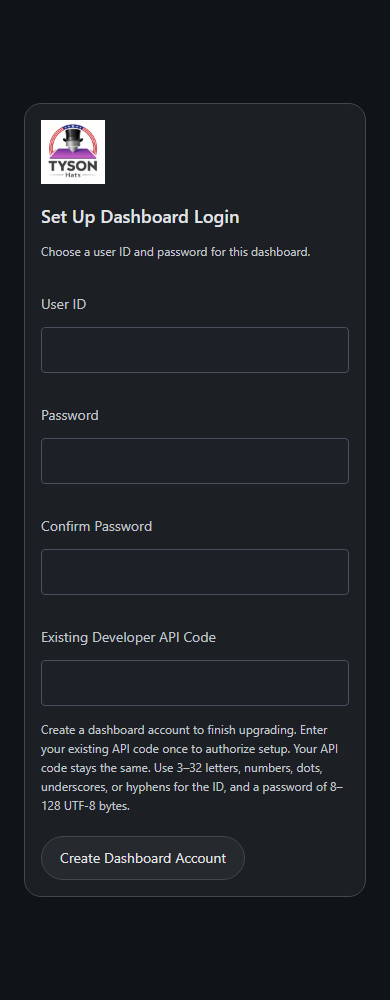
Firmware 3.10.15 production interface with demonstration data; no live credentials are shown.
For a lost developer code, sign in using the dashboard password and choose Generate New API Code. A lost dashboard password cannot be replaced with the developer code once an account exists; account changes require the current password. If necessary, follow Reset to Factory Defaults below, including the cooling and power-isolation steps. This erases Wi-Fi, printer settings, calibration and developer access, then restores dashboard login admin / admin. There is no remote password-reset bypass.
For a developer integration receiving 401 Unauthorized, enable developer access and send its current code as X-Tyson-Access-Code. A valid dashboard browser session is the other supported API credential. On 429 Too Many Requests, honor Retry-After. See Dashboard login and API access.
¶ The HAT is connected but Bambu temperatures are missing
Open Settings > Network > Printer Connection. Check the selected printer, serial, and saved LAN access code. Confirm the printer is online on the same network, then choose Reconnect.
Prefer Find This Printer Automatically for a discovered printer. A manually configured address can become outdated after a router restart. Re-enter the access code if the printer's settings changed. Selecting another printer requires its own credentials.
A dash indicates unavailable data rather than zero. Partial or delayed printer reports can make one value appear before another. Check the status text and allow fresh reports to arrive.
¶ Pause, Resume, or Stop Print is missing
Enable Developer Mode on the printer itself, then check Developer Mode Enabled On Printer under Settings > Network and Save Printer. The checkbox only records your confirmation.
Controls also require current printer status and are unavailable during calibration. If a command was sent but remains unconfirmed, check the physical printer's state before retrying it.
¶ Hotend or bed cards are missing
Check Settings > Hotend > Enable Hotend or Settings > Bed Heater > Enable Bed. Disabled hardware is intentionally hidden from the dashboard while its calibration is retained. Enable only hardware that is installed and commissioned for that model.
On X2D, select the intended hotend in Settings and check that side's enabled state. The two hotend channels have separate calibration and settings.
¶ Actual and Bambu temperatures differ
Check the selected temperature preset. Mapping intentionally scales the temperature signal sent to the printer. With 110:220, a Bambu bed target of 100°C corresponds to a Tyson actual target of 200°C. A hotend's chosen maximum similarly defines what Bambu's 300°C endpoint means.
Use the TYSON Actual readings for the local measured temperature and compare them against their actual target. Do not assume a mismatch means that either value should be manually forced to the other. If the readings do not match the selected mapping, stop the relevant control and review calibration and the model-specific hardware setup.
¶ Bambu sets the bed target to zero during a heating error
With Tyson bed control active, a fresh remembered target, and the required Developer Mode confirmation and command connection, the firmware can recognize supported bed-heating failures and resend the previous Bambu target. Repeated reports can trigger further attempts while that recognized condition and zero target remain. Other printer errors alongside the qualifying bed error do not prevent classification.
This feature is not a universal interpretation of every current or future printer error. Sensor, overtemperature, and limit faults do not count as ordinary heating-progress errors. The printer's alarm remains visible; recovery does not acknowledge it or automatically resume a paused print.
An observed bed-off or Stop command takes priority. A touchscreen zero can be indistinguishable from the printer's internal error reset. Choose Stop Bed on Tyson to explicitly stop its bed controller. After a HAT restart, issue a new intended positive target when ready; recovery does not invent a previous target that it did not observe.
When reporting a recovery problem, record the exact error, printer firmware version, HAT firmware version, whether Developer Mode is enabled on the printer, and the target before and after the reset. Turn on Debugging Mode for the relevant status messages. Do not share your LAN access code.
¶ The chamber fan keeps running after heating stops
Automatic cooling can keep it on after heating, during startup cooling, when the chamber is above the cooling threshold, or while the chamber temperature is unavailable. Turn Fan Off is disabled when cooling is required. Remember Fan State Across Power Cycles affects manual preference, not this automatic cooling behavior.
Changing the airflow preview or choosing Pause Preview does not operate the physical fan. Save the selected Fan Mode to apply a real speed change.
¶ Calibration or Enable Control is unavailable
Read the nearby status and save pending edits. Check that the printer is idle, its relevant target is zero, local sensor readings are valid, and required printer readings are fresh. Another active calibration, save, or restore can also temporarily block an action.
Hotend preset calibration normally starts cold; bed PID Auto-Tune needs the bed at least 10°C below its selected actual tuning target. Review Calibration and backups instead of repeatedly pressing a disabled control.
¶ A firmware update failed or its result is unclear
For browser updates, check that you selected the application .bin, not the release ZIP or a bootloader. Reopen the dashboard and confirm the running version before retrying after a lost connection.
For USB updates, close serial monitors, use a data-capable cable, refresh the port list, and try download mode or the slower connection option described in the Firmware Installer guide. Save the log if the failure persists.
¶ Reset to Factory Defaults
In case of unresolvable network issues or a lost username/password, the TYSON Hat can be reset to factory defaults. Follow these steps:
WARNING: A factory reset erases Wi-Fi, printer connections, settings, account credentials, developer access and custom calibration. It restores factory calibration defaults and dashboard login admin / admin. If you can still sign in, save calibration backups first.
-
Allow the Hat to fully cool before handling.
-
Shut off and unplug the Hat.
-
Remove the top panel of the Hat.
-
Find the BOOT button on the board. See the images below.
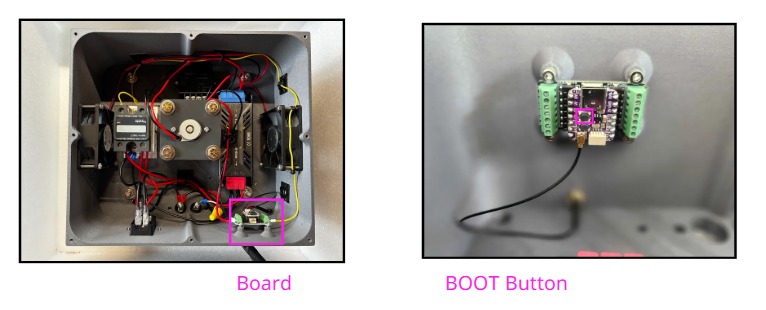
-
Plug the Hat back in and turn it on.
WARNING: DO NOT TOUCH ANY WIRES. Keep clear of exposed wiring while the HAT is powered.
-
On firmware 3.10.12 or later, push and hold BOOT for 20 seconds for a full factory reset. The LED light turns blue at 5 seconds when dashboard login is restored to admin / admin, then red at 20 seconds for the full reset. Each light lasts 5 seconds. Release BOOT and wait for the red light to go out and the Hat to restart. To reset only the dashboard login, release after blue and before 20 seconds; other settings are kept. Firmware 3.10.11 uses a 12-second hold; older firmware uses a 5-second hold for full factory reset.
-
Shut the Hat back off and unplug it.
-
Replace the lid and follow Software Setup to set up your network.
¶ What to include when asking for help
- Printer brand and exact model: Bambu Lab P2S or X2D, or the applicable Prusa model for its own documentation.
- HAT firmware version from Settings > About, plus the app version if a Windows app is involved.
- Printer firmware version and the exact error or status text.
- What action you took, what you expected, and what the screen showed instead.
- The relevant screenshot or exported installer log, with private network details and access codes removed.
Do not reset, erase calibration, or change heater power just to collect a report. Preserve the displayed evidence so the issue can be reproduced.