¶ Tyson Bambu Studio
Windows 10/11, 64-bit. MSI installer, 277 MiB.
Tyson Bambu Studio is the modified Bambu Studio application with Tyson controls for Bambu Lab P2S and X2D. Use this application to prepare a print with the chamber target and installed Tyson upgrades. The controls described here belong to the Tyson build.
¶ Where to enable the Tyson options
- In Prepare, select the printer preset for your P2S or X2D.
- Open that preset's Printer settings.
- Select Basic information, then turn on the Advanced switch at the top of the window.
- Scroll down to the Advanced group and select Tyson HAT enabled.
- Select Tyson hotend upgrade and/or Tyson bed upgrade for the hardware installed on this printer.
- Enter the Tyson developer API access code, check Tyson temperature scaling, and save the printer preset. Use Save As if you need to create a custom preset.
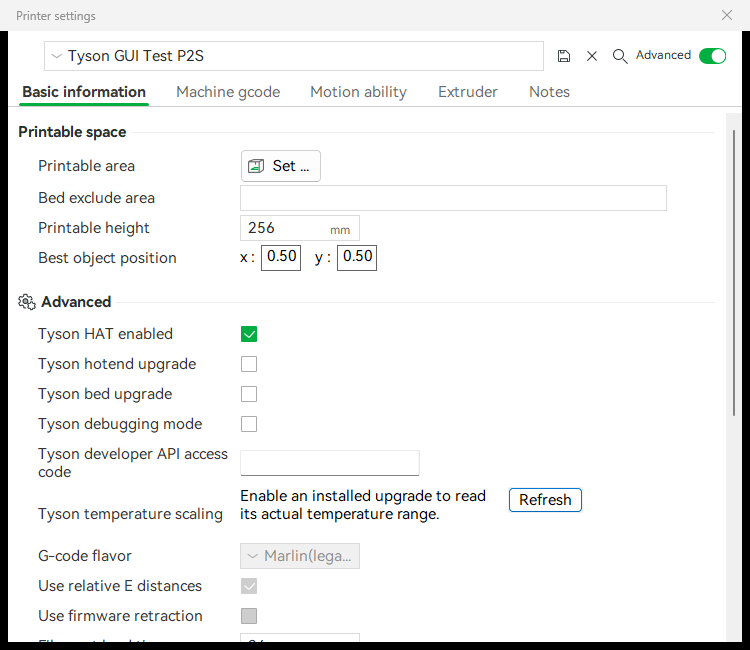
HAT-only setup: enable Tyson HAT and leave both upgrade checkboxes off. The current interface also shows debugging, developer API access and temperature scaling with Refresh.
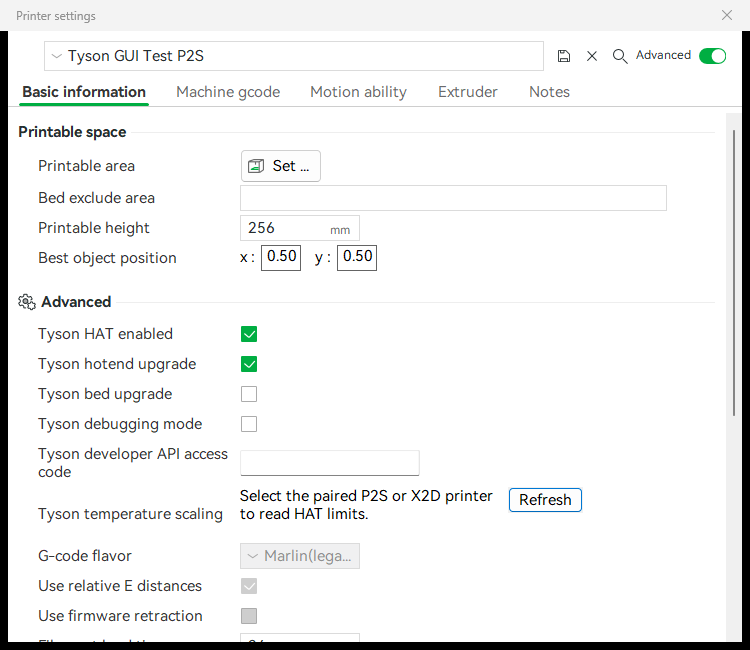
HAT with a Tyson hotend upgrade: select the hotend checkbox for installed hardware. Enable the bed checkbox only when the Tyson bed upgrade is installed. These example captures use a test preset without a connected printer.
¶ What each option does
| Control | What it does | When to use it |
|---|---|---|
| Tyson HAT enabled | Enables the Tyson integration for this printer preset. Studio sends the chamber target to the paired HAT when sending a print, and enables the other Tyson settings. | Enable when using a Tyson HAT with the selected P2S or X2D. |
| Tyson hotend upgrade | Uses the HAT's actual hotend temperature readings and active nozzle mapping. Filament targets and Device target inputs use actual Celsius; Studio converts the printer commands internally. X2D hotends keep separate active limits. | Enable only when the corresponding Tyson hotend hardware is installed and configured. |
| Tyson bed upgrade | Uses the HAT's actual bed reading and active bed mapping. Enter actual bed temperatures; Studio converts them to the printer's mapped target. | Enable only when the Tyson bed hardware is installed and configured. |
| Tyson debugging mode | Shows the additional Tyson temperature card and binding/configuration box on Device. Native current readings show raw Bambu values beside the HAT card; target inputs still use actual Celsius. | Leave off for normal use. Enable when you need to compare readings or inspect connection details. |
| Tyson developer API access code | Authenticates Studio to the paired HAT. It is saved locally for this printer preset, separately from the project and exported presets. | Enter the HAT's eight-character developer code. |
| Tyson temperature scaling / Refresh | Reads the paired HAT's active nozzle and bed limits. Refresh reads them again after a mapping change. | Check before slicing with an upgraded hotend or bed, especially after changing its active profile. |
The four checkboxes default to off. The HAT option appears only for P2S and X2D; the remaining Tyson controls appear after it is enabled.
These switches describe your installed hardware to the slicer. They do not install hardware, calibrate it, select a mapping preset on the HAT, or immediately turn a heater on. Complete the hardware installation and HAT calibration first. Configure active mapping and heater control in the HAT dashboard settings.
¶ Connect Studio to the HAT
- Put the HAT and printer on the same local network and complete Printer Connection in the HAT dashboard.
- In the HAT dashboard, enable Developer API Access and copy its code. See Developer API Access.
- Paste that code into Tyson developer API access code in Printer settings and save the preset.
- Select the paired printer on Device. Studio checks the HAT's paired printer serial; matching names alone are not enough.
- Check Tyson temperature scaling in Printer settings. Use Refresh to read the active limits again, then save the preset.
The developer code is separate from the Bambu printer's LAN Access Code and the HAT dashboard password. Studio masks it and keeps it in local application settings; it is not included in the printer preset, project/3MF, G-code or preset cloud synchronization.
¶ Set temperatures for a print
Open Filament settings → Filament → Print temperature.
- Set Chamber temperature to the chamber target you want the HAT to accept when sending this plate. 0 requests chamber heating off.
- With a Tyson hotend upgrade enabled, enter the actual nozzle temperatures you want, including initial-layer, other-layer and recommended nozzle temperatures.
- With a Tyson bed upgrade enabled, enter the actual bed temperatures for the plate type you use.
- Use values suitable for your installed hardware and material. The HAT's configured chamber limit still applies. Read the operating warnings before high-temperature use.
Do not apply the mapping conversion yourself. Studio reads the HAT's active mapping and converts commands internally. A pending dashboard selection does not replace the active mapping until the HAT applies it.
If the active limits change, refresh them and slice the plate again. Studio checks those limits again before sending and blocks a job that needs re-slicing.
¶ Send the plate
- Slice the project using the Tyson-enabled printer preset, then select Print plate.
- In Send print job, select the printer and check the Tyson HAT card and chamber target.
- Use Refresh to find the paired HAT. If automatic discovery is unavailable, enter its local IPv4 address in HAT IP (optional). The address still has to authenticate and match the printer pairing.
- Select Send. Studio asks the HAT to apply the chamber target and waits for its acknowledgement before starting the print upload.
This confirms acceptance of the target; it does not wait for the chamber to reach temperature. Preheat through the HAT dashboard first if the print requires a heat soak.
For a multi-filament plate, Studio uses the highest chamber target among the filaments actually used on that plate. Send one plate to one printer at a time.
With the HAT enabled, Studio removes the printer's M141 and M191 chamber commands from the final generated G-code so the HAT manages chamber heating. On X2D, a positive HAT chamber request also requires confirmation that the built-in chamber heater is off.
If Send reports a missing HAT, wrong code, pairing mismatch or rejected target, resolve that message before retrying. A timeout can leave the outcome unknown: check the HAT dashboard before repeating a heating request. A chamber target already accepted by the HAT remains set if the subsequent upload fails or is cancelled.
¶ Read temperatures on Device
In normal mode, use the existing nozzle, bed and chamber temperature controls. Enabled upgrade channels show the HAT's actual readings; disabled upgrades keep the Bambu readings. The chamber uses the temperature source selected on the HAT.
If an enabled HAT reading is unavailable or stale, Studio clears it instead of substituting a Bambu reading that could be in different units. Check the code, network connection, selected printer and active scaling.
Enable Tyson debugging mode if you need the separate Tyson temperature card and connection box. That extra card is read-only; use the normal Device controls or the HAT dashboard to change targets.
¶ If an option or connection is missing
| Symptom | Check |
|---|---|
| No Tyson HAT enabled checkbox | Use Tyson Bambu Studio, select a P2S or X2D preset, and turn on Advanced settings. |
| Hotend, bed or code rows are hidden | Select Tyson HAT enabled first. |
| No separate Tyson temperature card | This is normal with debugging off. Use the native Device readings, or enable Tyson debugging mode. |
| HAT cannot be found | Select the correct paired printer, use Refresh, and check the shared LAN. Try HAT IP (optional) if discovery is blocked. |
| Authentication fails | Enable Developer API Access on the HAT and use its developer code, not the Bambu LAN code or dashboard password. |
| Scaling changed or the job needs re-slicing | Refresh active limits, save the preset and slice again. |
Software guides | HAT setup | Dashboard settings | Troubleshooting